How to use it day to day, how to install and remove it, and how to license it, for a single PC or a whole device estate.
Day to day
Using ScreenSwytch
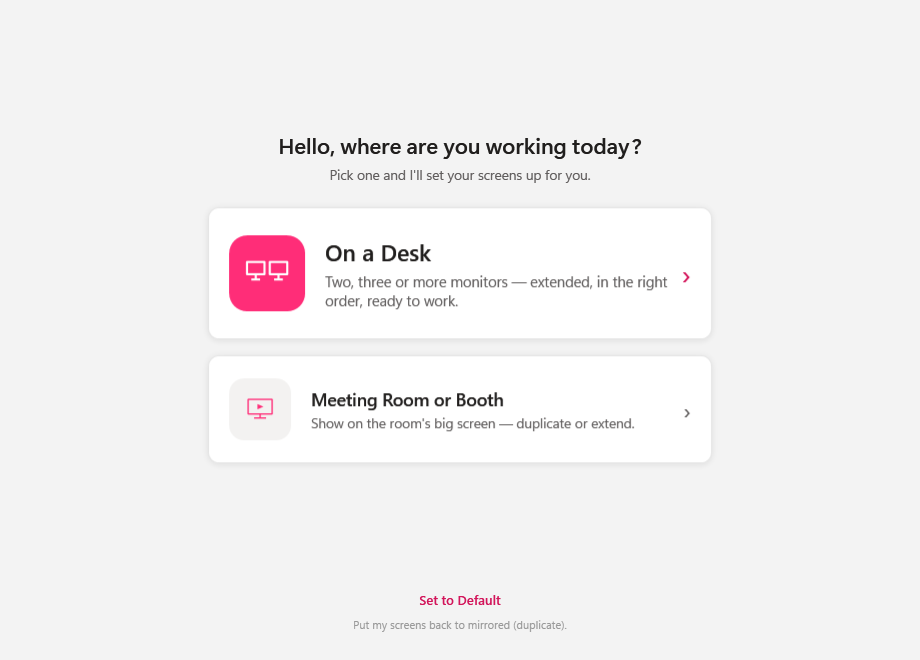
Open it from the desktop or Start-menu icon. The home screen asks “Where are you working right now?” with two choices, plus a reset.
The home screen — two choices and a reset.
On a Desk
Switches your monitors to Extend, then flashes a big 1 and 2, one on each screen. Tap the number showing on the screen to your left. ScreenSwytch puts the monitors in that order and makes the left one your main screen (taskbar there). If your laptop lid is open, its screen is tucked to the side and never made primary.
Meeting Room or Booth
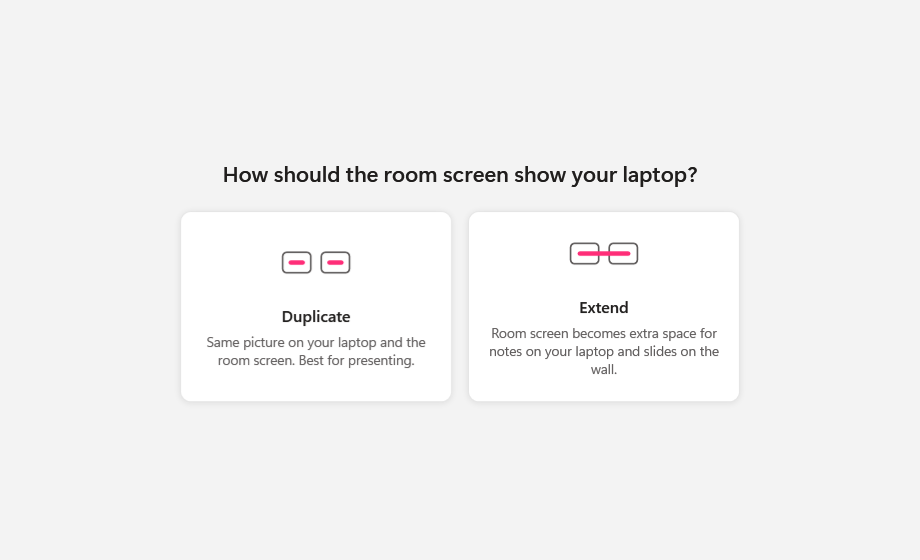
Choose Duplicate to mirror your laptop onto the room screen (best for presenting), or Extend and then drag the room screen to the left, right or above your laptop so your cursor moves across naturally.
Duplicate to present, or extend for notes on your laptop.
Set to Default
One button puts everything back to mirrored (duplicate), the state a fresh dock expects.
The Menu
Top-left Menu holds:
Licence: enter your licence key or apply a file, and check status, seats and this machine's ID
View Log File
Open Windows Display Settings
About: version, and a list of every screen it can see
Exit
Note: if it can only see one screen, it will say so. That usually means you're not docked yet.
Setup
Install ScreenSwytch
Installing needs administrator rights (it installs for the whole machine into C:\Program Files\ScreenSwytch). Running it afterwards does not need admin. Four ways to get it onto a machine, from a one-off install to a whole device estate.
Manual
Double-click ScreenSwytch.msi and approve the Windows prompt. It adds a desktop shortcut and a Start-menu entry. For a silent install from the command line (run as admin):
msiexec /i ScreenSwytch.msi /qn
PowerShell
Run elevated PowerShell, then install silently and wait for it to finish:
Wrap the MSI as a Win32 app and push it to your device groups as a silent, system-context install. Use the same one-step command to install and licence together:
Add it as a software deployment or a scripted install in NinjaOne, targeted at the relevant device policy or group. For detection, check that C:\Program Files\ScreenSwytch\ScreenSwytch.exe exists on the device.
Optional switches
You can add either of these properties to any of the commands above. LICENCEKEY=SSW-… installs and licences the machine in one step (shown above). DOCKREMINDERS=0 turns the background dock reminder off across your whole device estate; it's on by default, and each person can also turn it off themselves from the app's Menu. Combine them if you like:
The dock reminder is a small pop-up that appears when someone docks and their screens come up mirrored, offering to sort them in a tap. Leave DOCKREMINDERS out to keep it on.
However you install it, it's ready to use straight away. Licensing is separate if you haven't passed LICENCEKEY above, see How to license it.
Uninstalling removes the app and shortcuts. Your licence file and the on-machine log are left in place; delete C:\ProgramData\ScreenSwytch yourself if you want them gone too.
Device-estate deployment
Deploy across a device estate with Intune
Wrap the MSI
Download Microsoft's Win32 Content Prep Tool (IntuneWinAppUtil.exe), put ScreenSwytch.msi in a source folder, and run:
In the Intune admin center go to Apps → Windows → Add, choose Windows app (Win32), and upload the .intunewin.
Install command
msiexec /i ScreenSwytch.msi /qn
Uninstall command
msiexec /x ScreenSwytch.msi /qn
(or the product code form)
Install behaviour
System, so no user prompt; per-machine install.
Requirements
Windows 10/11, 64-bit. Devices also need outbound HTTPS to api.screenswytch.co.uk (port 443) to activate and keep their licence checked, allow (whitelist) it on any proxy or web filter.
Detection rule
Either the MSI product code, or file exists: C:\Program Files\ScreenSwytch\ScreenSwytch.exe.
Assign
Assign it to your device groups. It installs silently at the next sync.
For a single MSI you can alternatively add it as a Line-of-business app: upload the .msi directly and Intune fills in the product code and commands for you. Simplest option if you don't need to bundle anything else.
Device-estate deployment
License every machine
Every customer gets a short licence key that looks like SSW-XXXX-XXXX-XXXX, the only thing you handle. Pass it to the installer and every machine in the fleet licenses itself online.
Network access: ScreenSwytch activates and re-checks licences over HTTPS to api.screenswytch.co.uk (port 443). If your network uses a proxy or web filter, allow (whitelist) that domain so devices can activate and stay licensed. If it's blocked, the app shows a clear "can't reach the licence service" message.
Quickest: install and licence in one command
Pass your licence key to the installer and every machine activates itself online on first launch, ideal as an Intune Win32 app install command:
Short and safe to paste, the key has no quotes or special characters to escape. On first launch each device exchanges the key for its licence and is ready to go.
Every machine is licensed on first launch. No one has to touch it.
Licensing
How to license it (in the app)
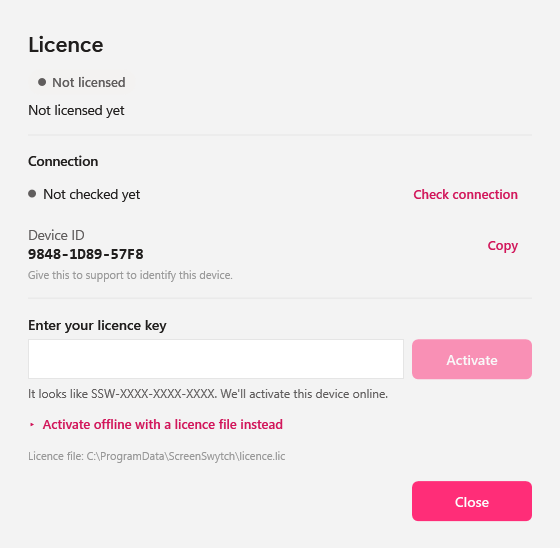
For a single PC, or to check status: open ScreenSwytch → Menu → Licence. Type your key to activate:
Menu → Licence: paste your key to activate.
Your licence key
Type your key (SSW-XXXX-XXXX-XXXX) into the box and press Activate. ScreenSwytch activates this device online and shows Licensed to [name] · expires [date].
Statuses you might see
Licensed All good.
Trial Free for 7 days, then activate.
Not licensed yet Enter your key to activate.
Seat limit reached Ask your admin to free a seat or add more.
Expired Time to renew: do it in your account.
The licence is stored per-machine at C:\ProgramData\ScreenSwytch\licence.lic, so everyone who uses that PC shares it. Remove it any time from Menu → Licence → Remove licence from this device.